My Failed Attempt at Building an AI Image Compressor (Honest Review)
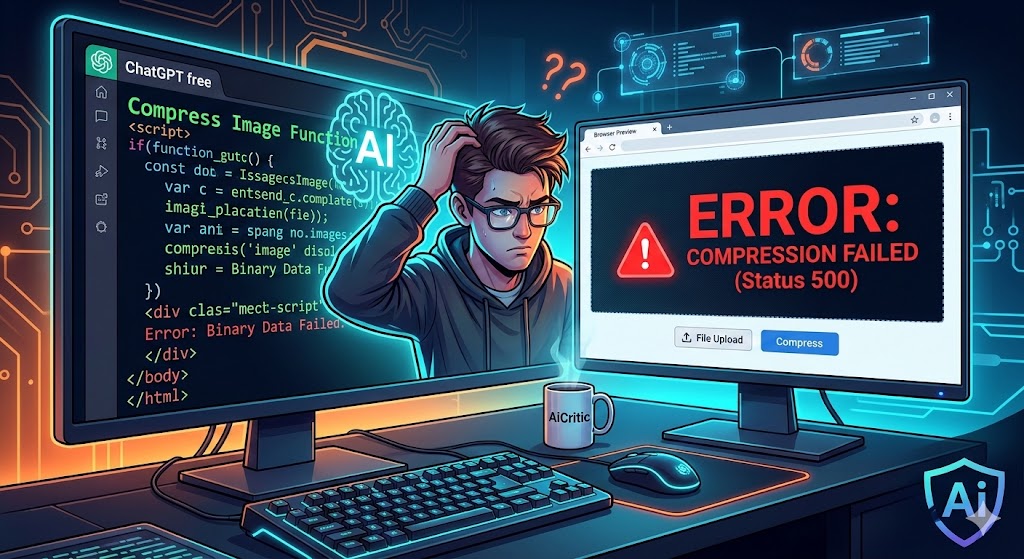
Last week, I decided to put ChatGPT and Gemini to the ultimate test. The goal? Build a simple, browser-based Image Compression tool using only JavaScript.
At first, it felt like magic. The UI was there, the buttons were clicking, but when I dropped a 5MB photo… Nothing happened. The error wouldn’t go away, and no matter how many times I told the AI to “Fix it,” it kept giving me the same broken code.
The Problem: Why Free AI Fails at Coding
If you’re using the free versions of these tools in 2026, you’ll notice a pattern. They are great at “Text,” but when it comes to “Logic” and “File Handling,” they hit a wall.
-
The “Loop” Error: Free models often get stuck in a loop, giving you the same 20 lines of code over and over.
-
Outdated Libraries: They might suggest using methods that browsers don’t support anymore for security reasons.
-
Memory Management: Compressing an image requires the browser to use “Canvas.” If the AI doesn’t manage the memory right, your tab will just crash.
How I Finally Fixed the “Compression Error”
After 3 hours of frustration, I realized I couldn’t rely 100% on the AI. Here is the Pro Tip that actually worked:
Don’t ask the AI to write the whole tool. Ask it to use a specific library like
Canvas API.
The “Human” Solution:
Instead of saying “Make me a tool,” I used this logic:
-
Step 1: Upload the image to a hidden
<canvas>element. -
Step 2: Use the
toDataURL('image/jpeg', 0.7)function to lower the quality. -
Step 3: Trigger a virtual “Download” link.
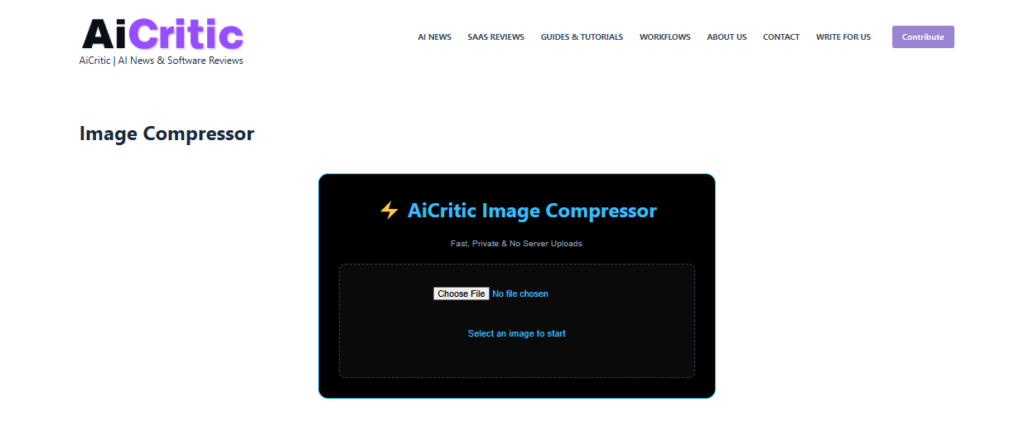
Once I gave the AI these specific instructions, it finally produced a working script.
Final Verdict: Is AI Coding Dead?
No, but it’s not “Auto-Pilot” yet. If you are a beginner using free versions of Gemini or GPT, you need to be the Architect. Don’t just copy-paste; try to understand the error log in your browser (F12 is your best friend!).
At AiCritic, my advice is simple: Use AI to build the skeleton, but use your own brain to fix the heart of the code.